
Getting started
Open Cadexus and create your company account
Cadexus runs in your web browser. You can create your account before adding Cadexus to your device's home screen.
By the end of this guide, you will have confirmed your email, set your password and reached your company's setup screen.
Before you start
Have your company name and access to your work email ready. This guide is for creating a new company workspace. If your company already uses Cadexus, use the invitation sent by your administrator.
1. Open the account creation screen
Open Cadexus in your browser. On the sign-in screen, select Create an account.
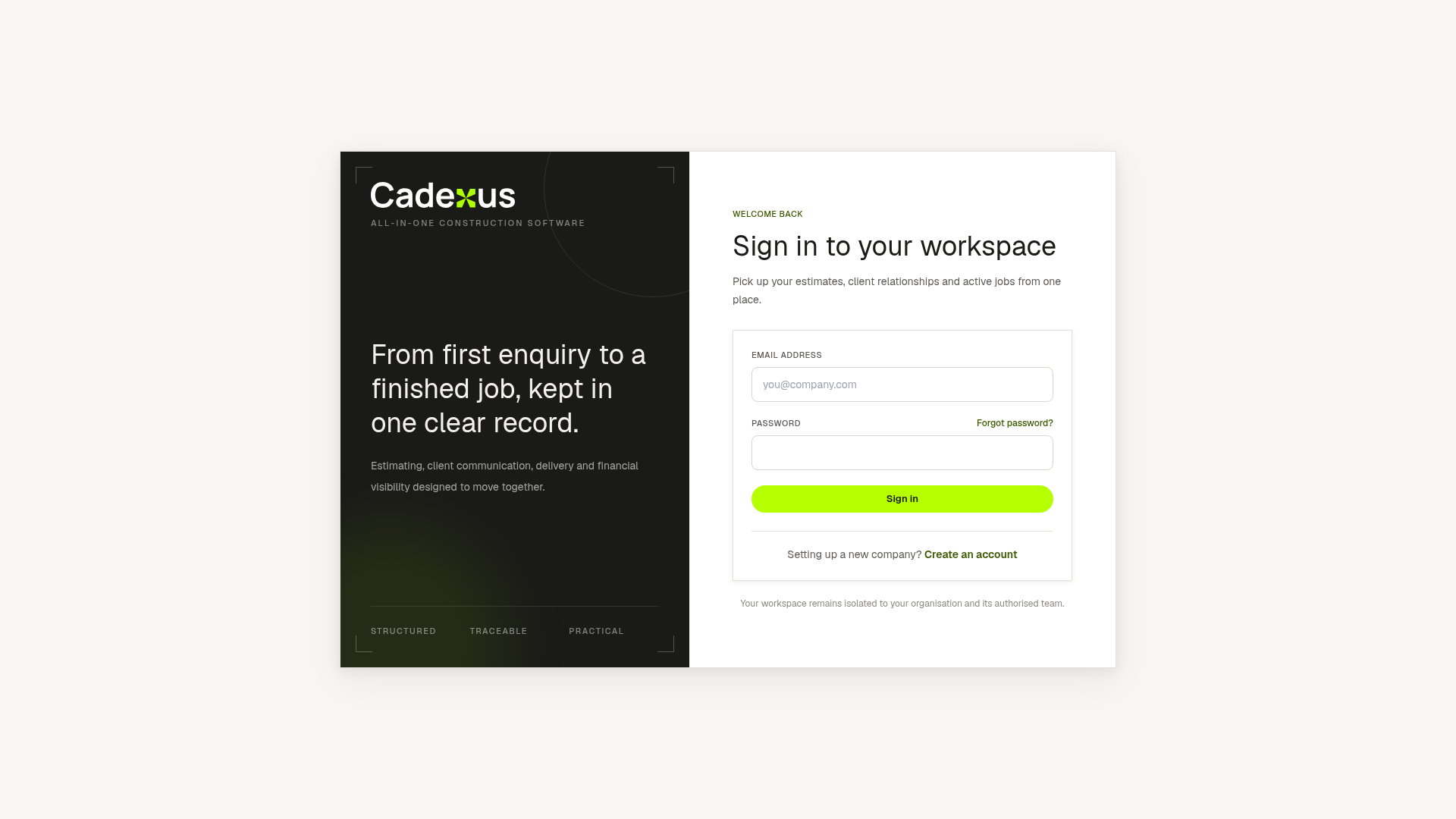
You will see Start your workspace.
2. Enter your details
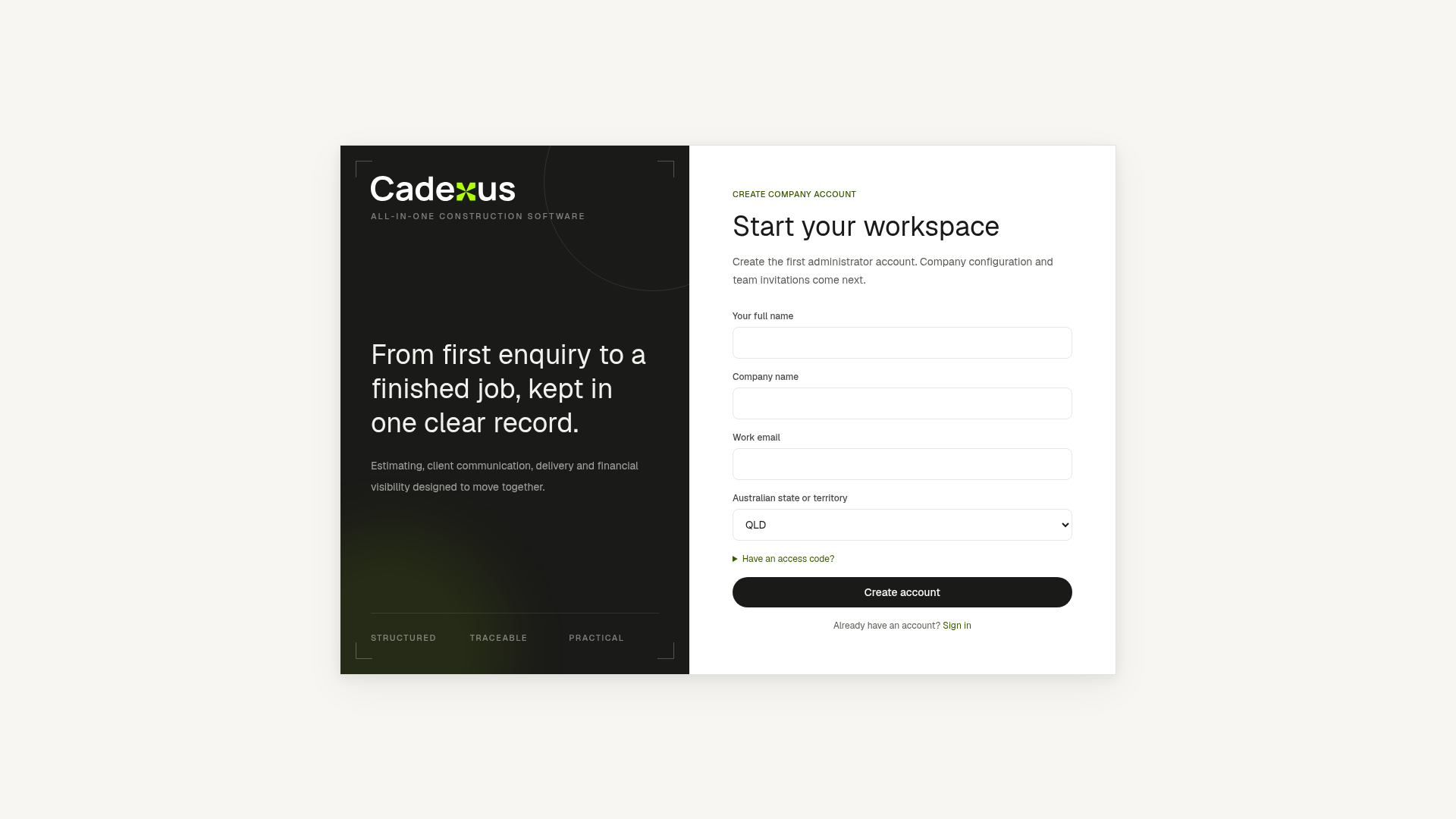
Enter your full name, company name and work email. Select your Australian state or territory.
If you were given an access code, open Have an access code? and enter it. Otherwise, leave it blank.
Select Create account.
3. Confirm your email
When Check your inbox appears, open the verification email and follow its secure link.
On the Accept your invitation screen, select Continue to confirm your email and move to password setup.
If it has not arrived, check your spam folder. You can also select Resend verification email on the confirmation screen.
4. Set your password
On Set your password to get started, enter a password of at least 10 characters, then enter it again in Confirm password.
Select Set password & continue.
5. Arrive at company setup
Cadexus prepares your workspace and opens the setup screen. This is where you begin configuring your company and preparing estimating.
Your account is ready. The company setup itself is covered in the next setup lesson.
Returning to Cadexus
Open the app's sign-in screen, enter your email address and password, then select Sign in. If you cannot remember your password, select Forgot password?.
Next
Add Cadexus to your device, or continue to the company setup guide. These follow-on lessons are being prepared.